
Deploy and Manage › Deployment
Bring your own MongoDB Atlas cluster to Emergent
Bring your own MongoDB Atlas cluster to Emergent. Just connect your Atlas account and pick a cluster. Emergent then automatically migrates your app's database to it. Your app stays online while this happens, and requires no changes from your side.
Why bring your own MongoDB cluster?
By default, Published Emergent apps run on Emergent's managed MongoDB. Connecting your own Atlas cluster means you own the data. It lives in your Atlas organization, under your access controls and billing.
Pre-requisites for migration
To migrate your apps database to your own MongoDB cluster, check if the below requirements are met:
-
Whether you have an Emergent Pro Subscription: This feature is currently available only to Emergent Pro users.
-
A Published app: The app must be published before it can be connected.
-
An Atlas dedicated cluster: The cluster tier must be M10 or higher. Migration to free and shared tiers is not supported.
-
Third Party Apps is Enabled: An Atlas organization owner must enable “Third-Party Apps” toggle under organization settings.
-
A running cluster: The cluster must not be paused or busy with another operation.
Step-by-step guide
1. Open the Database tab
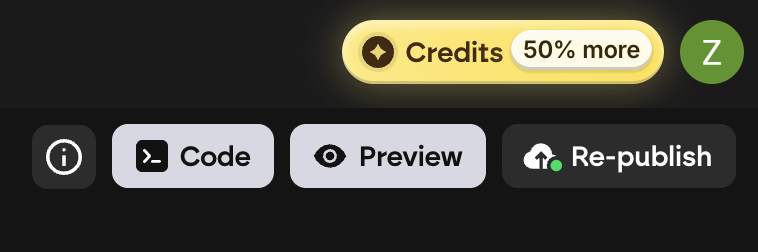
Open your published app, and click on the Republish button. Upon clicking you will see a Publish Panel which has a Database tab. Click on the Database tab and find the Connect your own MongoDB card.
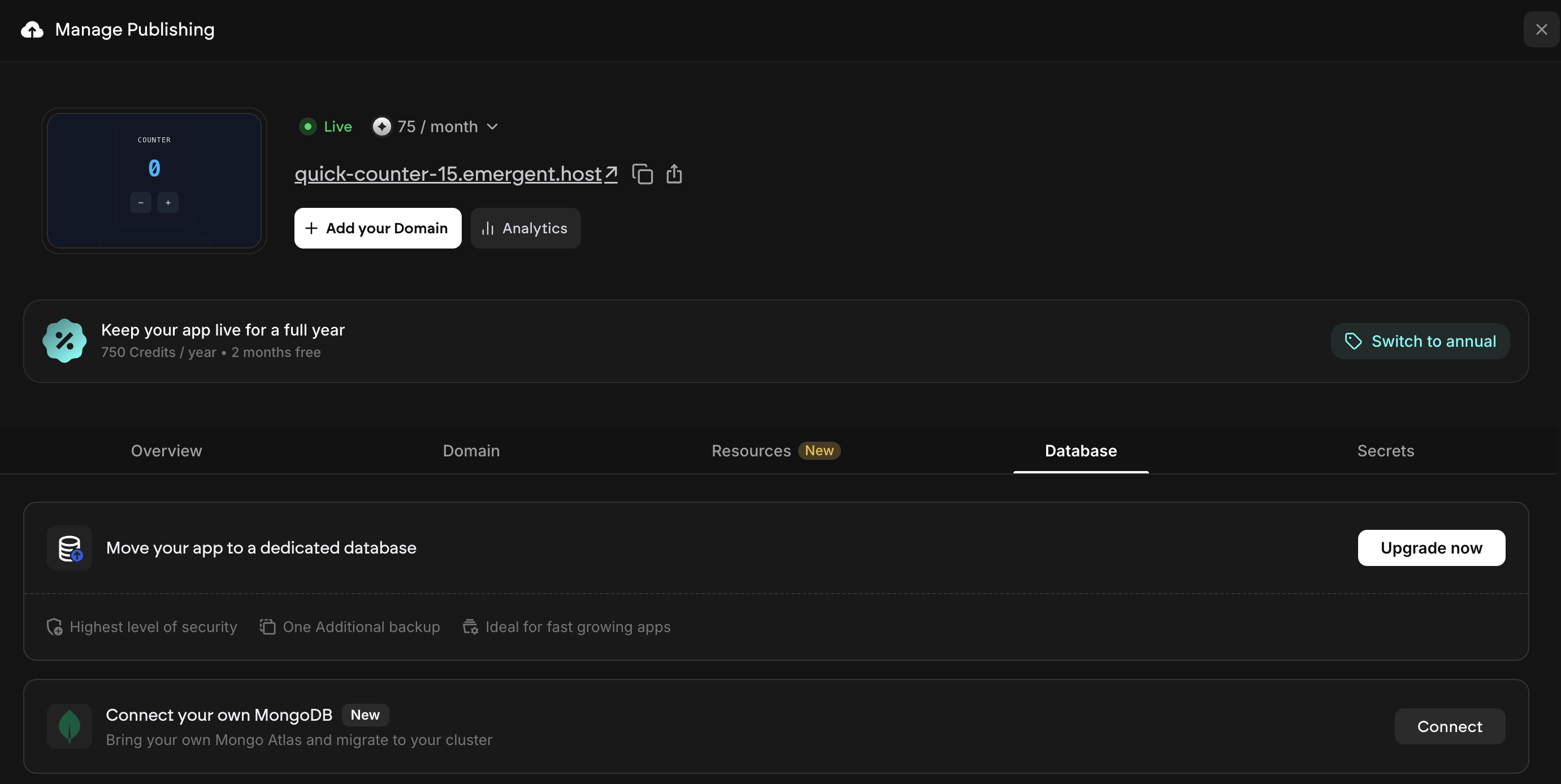
2. Click Connect
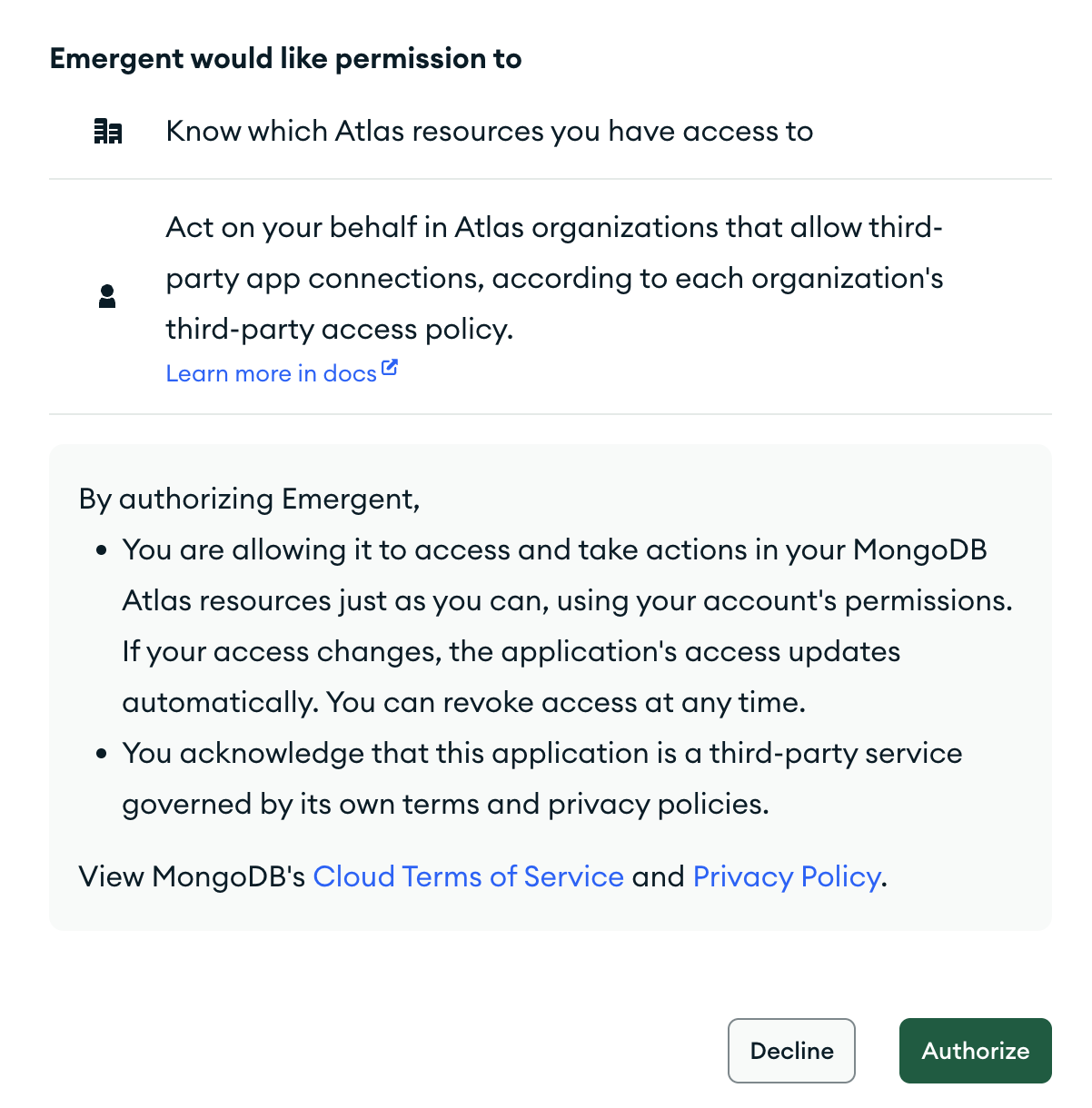
A new tab opens in your browser, which takes you to MongoDB's consent screen. Sign in to Atlas and approve access for Emergent as below:
3. Return to Emergent
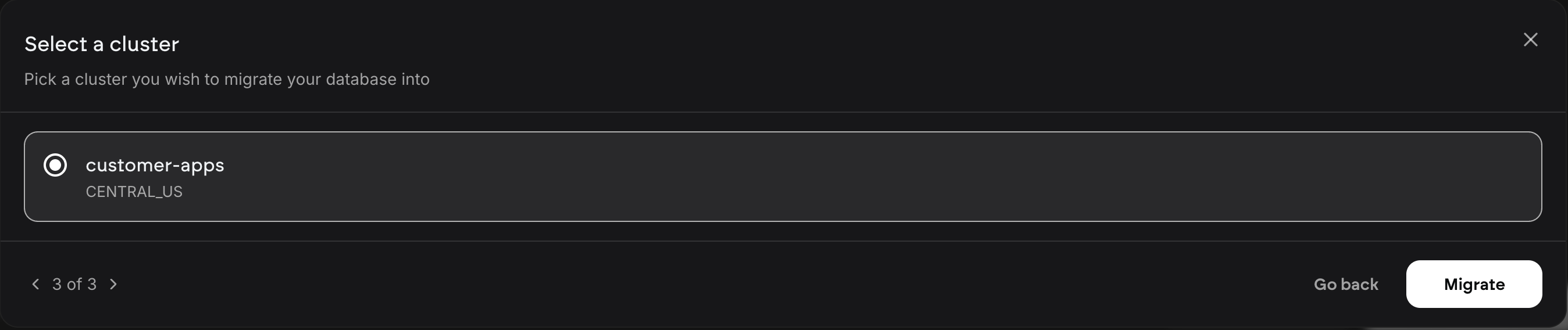
After you approve, you're sent back to your app and a bottom sheet will open, which lets you select your cluster. If you cancel or the attempt expires, you can always click Connect again.

4. Pick your cluster
Choose, in order:
-
Organization
-
Project
-
Cluster
Clusters that are paused or busy are greyed out. Your selection is saved at each step, so you can leave and resume later.
No organizations listed? An Atlas Organization Owner needs to enable Third-Party Apps toggle for your organization (as mentioned in pre-requisites), then reopen the picker.
5. Click Migrate
Emergent starts moving your data to the selected cluster. Your app keeps running on its current database throughout, and traffic switches over near the end. Migration takes anywhere from a few minutes to a few hours depending on the size of the database.
6. Confirm it's live
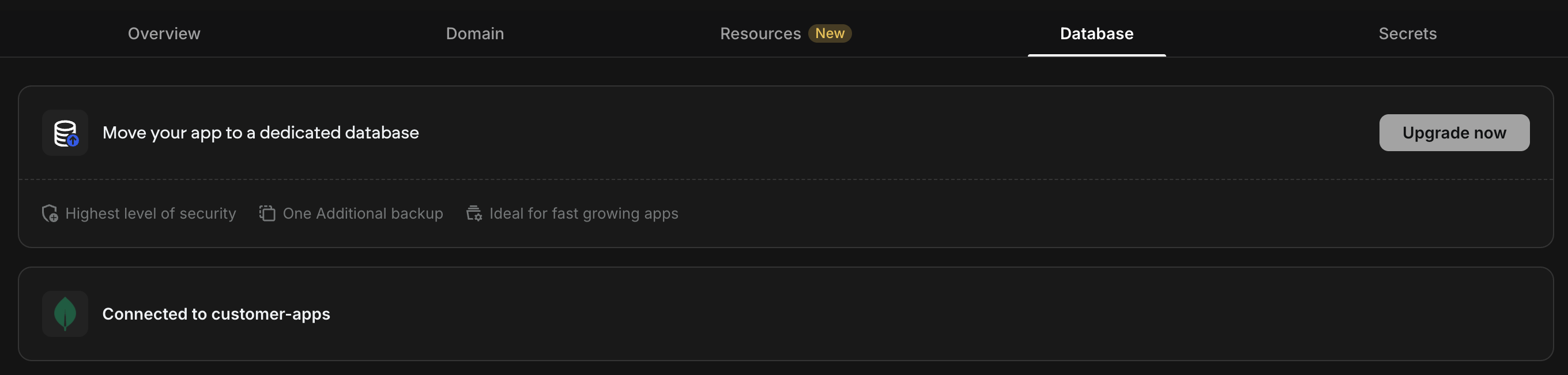
When the migration finishes, the card under the Database Tab will show as connected with the cluster name you selected.
If something goes wrong, the card will show “Your database wasn't moved.” Your app will continue to remain on its original database.
What Emergent sets up for you
In addition to the data migration, Emergent also creates the database user for your app and adds its egress IPs to your Atlas project's access list. The process is completely automatic, and you don't need to configure anything.
Good to know
-
Moving back from your own cluster to Emergent's managed database isn't self-serve. Contact support if you want to move back.
-
Once connected, the cluster can't be re-pointed to a different one from the UI. To do this, reach out to emergent support.
-
Apps already on an Emergent Dedicated Database, or already using an external database, can't use this flow.
-
Your app will undergo a republish as part of the process. Don’t worry, no new code changes will be published as part of this. Only your database will be migrated, and your existing production code remains unchanged.
Troubleshooting
If you see,
-
An empty organization list: Ask an Atlas Organization Owner to enable Third-Party Apps toggle in organization settings.
-
Cluster greyed out: Resume a paused cluster in Atlas, or wait for the running operation to finish.
-
"A migration is already running" in the database tab: Wait for it to finish; the card shows progress.
-
Migration is taking longer than expected: Don’t worry as your app will still be up on production. Contact support if it takes longer than an hour.
-
Database wasn't moved: Don’t worry, your published app remains unaffected. You can always re-attempt the database migration by following the same steps.
Need help?
Contact Emergent support from the app, or see the help centre at https://help.emergent.sh.
